
Still need help?
Get in touch with the Education Portfolio team by logging a ticket via ServiceConnect. We'll be in touch shortly.
Log a ticketWant to provide feedback on this resource? Please log in first via the top nav menu.
A transcript is a document that contains the full spoken text of either a video or audio file. Transcripts are automatically available for students in Canvas using the Kaltura video player. Here’s how transcripts are presented in Canvas, along with guidance on how you can improve their accuracy and quality if necessary.
To learn more about captions and accessible practice, read Captions and transcripts: accessible practice.
The transcript panel provides a richer experience than a static document. Students can:
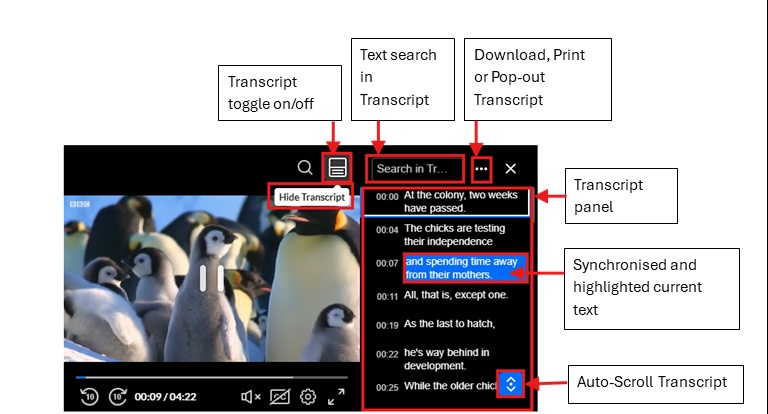
Transcripts are enabled by default in the Kaltura video player in Canvas, when available. They are automatically generated and displayed on the right side of the video in an interactive, synchronised panel. The panel can be toggled off when not needed via the button at the top of the video player.
Next to the transcript toggle button is a search box, and students can navigate the video by selecting the timestamps.
The downloaded transcript is based on the captions attached to the video. For a more accurate starting point, edit your captions first before downloading the transcript.
Transcripts can be downloaded directly from the video player by selecting the three dots menu in the transcript panel and then ‘Download current transcript’ or ‘Print current transcript’.
‘Download current transcript’ provides a fragmented, time-aligned transcript in .txt format. It is suitable for following along with video playback.
’Print current transcript’ provides a paragraph-style transcript in .pdf format. It is suitable for reading or sharing as a continuous document.
For media owners, transcripts can also be downloaded from Kaltura My Media, where additional download and media management options are available alongside the video. To find a transcript from Kaltura My Media:
You can use the .txt file to
Once your edited transcript is ready, you can share it with students in Canvas. The options below work best when you want to provide a formatted, labelled document alongside the video: supplementing the built-in player transcript rather than replacing it.
For most videos, the built-in Kaltura transcript panel will meet your students’ needs. However, there are situations where providing a separate, edited transcript document alongside the video is still good practice, for instance if:
Upload the saved file directly to Canvas. Read our guide on how to Upload and embed documents.
If you use this method, you will need to re-upload the file each time changes are made, and only the file owner can share a link to it. For a more sustainable approach, use the Advanced method below.
The advanced method uses HTML to embed the transcript as a collapsible ‘details widget’ on the Canvas page, allowing students to toggle it open and closed without leaving the page.
Copy the code below:
<details> <summary style="cursor: pointer;">Video transcript</summary> <p>Enter or paste transcript text here.</p> </details>
Then follow these steps:
Anyone with edit access to the Canvas page can update the transcript when required: making this a more collaborative and sustainable approach.
If you need help with HTML or producing transcripts, please book a consultation with us in the Education Portfolio.
Get in touch with the Education Portfolio team by logging a ticket via ServiceConnect. We'll be in touch shortly.
Log a ticketWant to provide feedback on this resource? Please log in first via the top nav menu.