UTS uses ProctorU to support remote proctoring of online exams. From 2025, ProctorU exams can be configured directly in Canvas. This guide will take you through the steps to set up an AI-invigilated exam in your subject site with ProctorU.
Ensure ProctorU is enabled in your subject by adding it to your subject’s navigation menu.
Set up your Canvas quiz shell. To enable proctoring, the quiz shell must:
Be published
Have an availability window and due date with a time ending in :00, :15, :30 or :45
Have a time limit
Have an access code
ProctorU settings
Login to Canvas and navigate to your subject site.
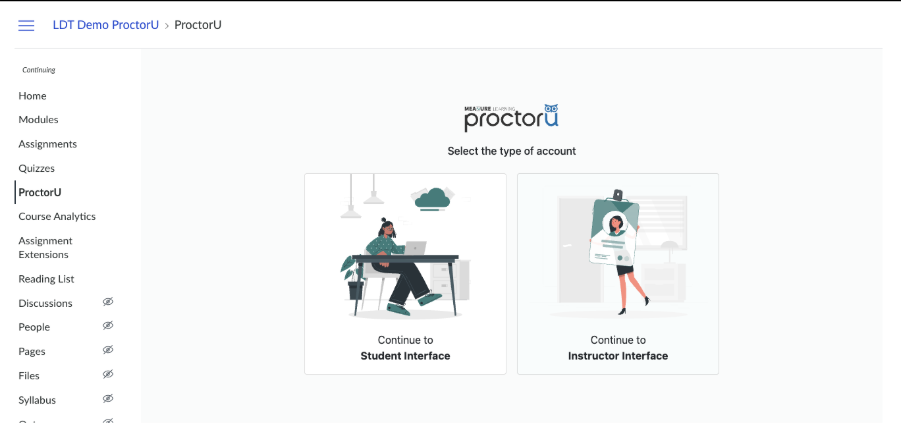
Open ProctorU from the subject’s navigation menu and choose the Instructor interface.
New to ProctorU? You will be guided through an account creation process the first time you click on ProctorU in your subject site.
Navigate to the ‘Unproctored exams’ tab.
Find your exam in the list and select ‘Configure exam to be proctored.’
An error message will indicate if you have any missing fields that need to be added to the quiz. You cannot configure an exam until these are added. Click on the link in the error message to go to the Canvas quiz and fix the settings.
Proctoring Settings: Add yourself and anyone who needs edit access to the exam as Editor.
Department: Select Default department and Default term.
Exam windows: Check that the exam window and exam duration is accurate. These are automatically imported from your Canvas quiz.
Security and Resources: choose the security level for the exam. Each level has a different configuration of security settings and you can select the information icon next to each setting for more detail about each one. If you are in doubt submit a Service Connect ticket for assistance. The levels are:
Custom (commonly used at UTS). If you need to change the settings select the Edit Manually button.
For Closed Book exams
all 4 security options should be at the highest level,
in resources Choose ‘No Tools, Resources or Behaviours Allowed’.
For Open Book exams
select the security setting for Copy & Paste as disabled and the least restrictive options for other 3 settings.
Select the relevant permitted tools and resources.
Do not allow bathroom breaks.
For Restricted Open Book exams
Select the security settings that will allow your students to use the local files, apps, or websites.
Select the tools and resources your students will need.
Accommodations: Ignore this section. These are entered by the LLE Exams team when needed.
Notifications: This section determines who is notified when incidents occur during an exam.
Primary contact: This is usually the Subject Coordinator. This is who ProctorU will contact if students experience any issues with the exam.
Incident contacts and Scheduled appointment contacts: Ignore these.
Summary: Review and select ‘Save Configuration’ to finalise your proctoring settings.
Edit a ProctorU exam
If you need to edit your exam settings after the ProctorU settings have been configured, you will need to manually sync the changes with ProctorU.
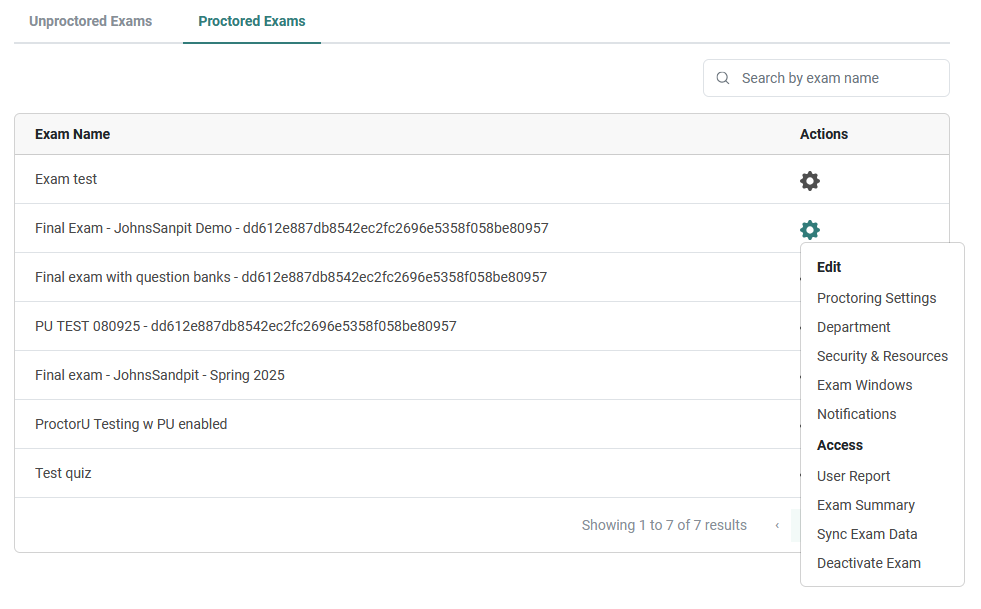
Navigate to the “Proctored Exams” tab, find the exam that had adjustments, and select the gear icon, and select “Sync exam data”.
If you need to edit the security and resources settings in ProctorU:
In the ProctorU LTI, navigate to the “Proctored Exams” tab.
Select the gear icon next to the exam you would like to update.
Select the Security & Resources option, edit, and
Select the gear icon next to the exam you have just updated.
Select “Sync exam data”.
Important!
You must not make any changes to your exam after the content deadline. Exam content deadlines can be found on the LLE Exams Hub.
If you must make changes to your exam after these dates, please inform exams@uts.edu.au.