
Still need help?
Get in touch with the Education Portfolio team by logging a ticket via ServiceConnect. We'll be in touch shortly.
Log a ticketWant to provide feedback on this resource? Please log in first via the top nav menu.
The Social Poll tool allows you to embed short, interactive polls in Canvas content such as pages, announcements, discussions, and assignments. After responding, students can instantly see how others have voted. This guide shows how to create polls, configure question and display settings, and reuse polls across subjects. Please note Social Polls are designed for formative feedback and do not integrate with the Canvas Gradebook.
You can use a Social Poll to:
There are 6 available question types you can use. Each question type includes a prompt and configuration options. You can add multiple questions to one poll. Each type serves different engagement goals (e.g. comprehension check, opinion poll, open reflections).
Students choose one definitive answer – this is the default option. Use for polls with only one correct or preferred response. It’s great for quick knowledge checks or to prompt discussion.
Students can select more than one option. This question type can be used to explore preferences, behaviours or shared experiences. Suitable when there may be more than one valid response.
Students rank their preferred choices in order; results are then tallied to show most popular rankings. This can be useful when you want to understand priority or preference (e.g. for vote-based decisions).
Students type their own short written response. Use ‘Free Response’ when you want open-ended input or personal reflections. This can help surface diverse thinking or provide qualitative insight.
Students respond on a scale (e.g., from Strongly Disagree to Strongly Agree). This option is ideal for gathering attitudinal data, feedback or sentiment. It enables quick visualisation of class trends.
This is not a question but a block of text. It can be used to explain something or give context before the next question. It can introduce a new section or explain an upcoming set of questions.
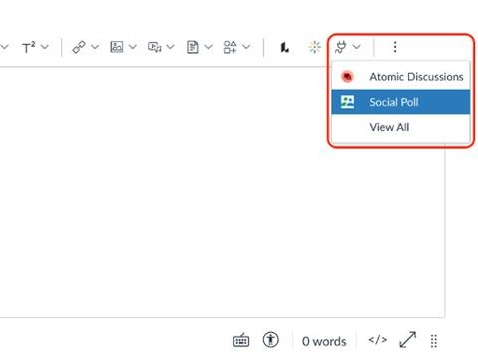
Follow these steps to insert and configure a poll in a Canvas page, announcement, discussion, or assignment.
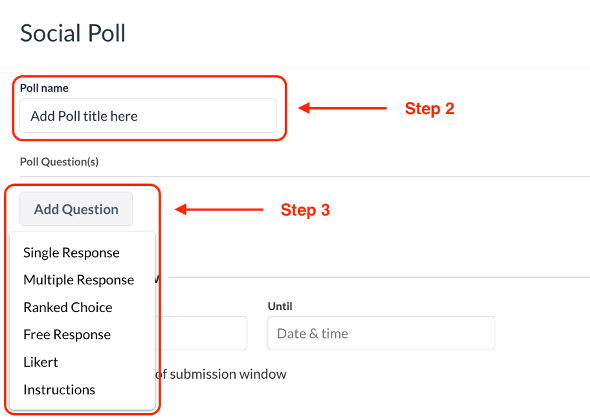
These settings appear once you add a question. You can use them to change the behaviour of the individual question. Not all of these options will be used, depending on the Question Type. These advanced settings allow you to customise how students interact with polls and how feedback is provided.
Displays a message to all students after they answer the question, regardless of their response.
How to enable: Tick the Show general feedback checkbox and enter your message in the General Feedback box.
When to use it: Great for reinforcing key concepts, offering encouragement, or providing additional context.
Provides specific feedback tied to each response option. Displayed after the student selects an answer.
How to enable: Tick the Show option feedback checkbox, then type feedback for each response.
When to use it: Useful when certain responses reflect common misconceptions or need clarification.
Prompts the student to write a brief justification for their answer. A textbox appears after they choose an option.
How to enable: Tick the Require student to explain choice checkbox and enter your prompt.
When to use it: Ideal for reflective learning or when you want students to demonstrate reasoning.
Randomly changes the order of the answer choices for each student. Helps reduce bias in multiple-choice polls.
How to enable: Tick the Shuffle options checkbox.
When to use it: Useful for polls with answer choices that don’t rely on a particular order (e.g. opinion-based questions).
Note: Required and automatically enabled for Ranked Choice questions.
This setting determines how poll results are shown to students after submission.
How to enable: Select one of the three options under Display results as:
When to use it: Use “Both” when you want a full breakdown, or “Percent chosen” if you want to highlight proportional trends in responses. “Number of votes” may be useful in small groups or testing environments.
Student experience may vary depending on the configuration of visibility, anonymity, and feedback options.
Once a Social Poll is published and visible in a Canvas content item:
For more on Social Polls head to the next resource in this collection that focuses on advanced settings, student-facing configuration options, results and analytics, and poll management.
Get in touch with the Education Portfolio team by logging a ticket via ServiceConnect. We'll be in touch shortly.
Log a ticketWant to provide feedback on this resource? Please log in first via the top nav menu.